
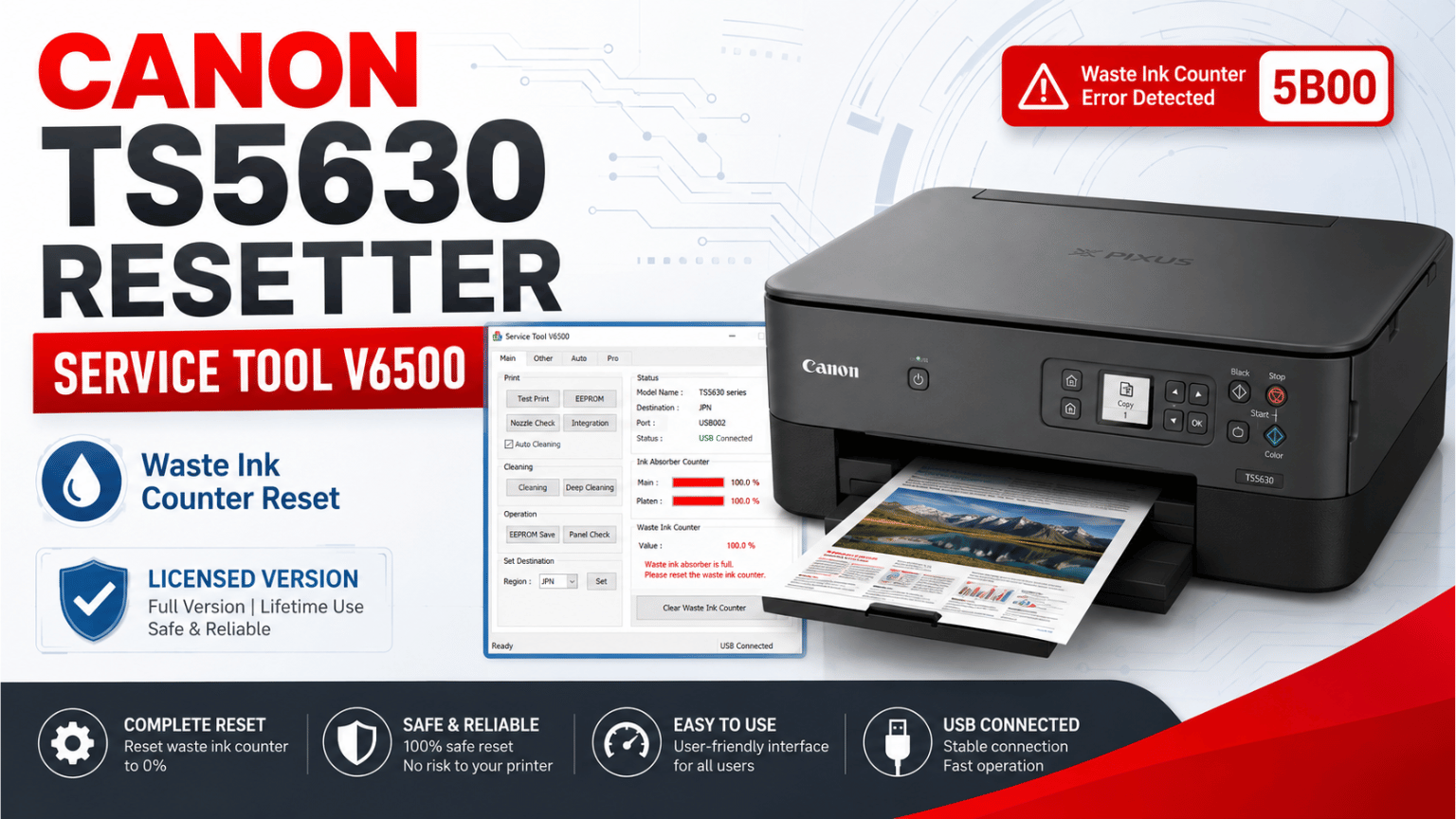
Canon TS5630 Resetter
If your Canon PIXUS TS5630 has stopped printing and displays the 5B00 error, you may be dealing with the waste ink absorber counter reaching its limit.
This is not the same as a cartridge error or a normal ink-level warning. Canon uses an internal counter to estimate the amount of waste ink collected during print head cleaning and other maintenance operations.
When that counter reaches its programmed limit, the printer can stop printing and display Support Code 5B00. Canon officially describes this error as the ink absorber being full.
For technicians working with this model, Canon Service Tool V6500 provides access to service functions used after checking and servicing the printer.
This version is provided through an individual activation license. It is not distributed as an unprotected RAW version.
The TS5630 stores information about waste ink generated during operations such as print head cleaning.
That ink is collected by internal absorbers inside the printer.
Canon also uses a warning stage before the printer reaches its final limit. For example, Support Code 1713 indicates that the ink absorber is almost full, while 5B00 indicates that it has reached the limit and printing can be disabled.
This is why simply restarting the printer normally does not solve the problem.
The counter must only be initialized after the physical condition of the waste ink system has been checked.
The Canon TS5630 is included in the newer generation supported by Canon Service Tool V6500.
This service software is intended for technicians who need to communicate with compatible Canon printers while they are in Service Mode.
Depending on the printer and the available service functions, the program can be used to access maintenance information and perform counter-related operations.
For this guide, our main interest is the waste ink counter associated with the 5B00 error.
It is important to understand that Service Tool is not a universal repair program.
It does not repair:
If your TS5630 has another error, resetting the waste ink counter will not automatically solve it.
I recommend checking the printer before performing any reset.
If the printer has already printed a large number of pages or has gone through many cleaning cycles, there may actually be a considerable amount of waste ink inside it.
The software resets a counter.
It does not physically remove the ink stored in the absorber.
For that reason, technicians should inspect, clean or replace the corresponding absorber components when necessary before initializing the counter.
Resetting a heavily saturated printer without servicing it can eventually result in ink leakage.
Canon Service Tool does not normally communicate with the printer in its regular operating mode.
The TS5630 must first be placed into Service Mode.
I do not recommend repeatedly trying random button combinations if the printer does not enter Service Mode. Confirm that the printer is actually recognized correctly before performing any operation.
Once Service Mode is active, connect the printer directly to the computer using USB.
Avoid using Wi-Fi for this procedure.
The version provided here requires an activation license.
This allows us to distribute the Service Tool without publishing the unprotected RAW version.
Printer: Canon PIXUS TS5630
Software: Canon Service Tool V6500
Connection: USB
Operating system: Windows
Interface: English
Activation: Required
Main use in this guide: Waste ink counter / 5B00 service procedure
Tu descarga estará disponible en 60 segundos…

After downloading the program, extract it to a folder on your Windows computer.
This part is very important.
When you open the Service Tool activation program, your Hardware ID is automatically copied to the Windows clipboard.
You do not need to type the Hardware ID manually.
1. Open the program.
Your Hardware ID will automatically be copied.
2. Open WhatsApp Web or WhatsApp Desktop.
Open our WhatsApp conversation.
3. Press:
Ctrl + V
Your Hardware ID should appear inside the WhatsApp message box.
4. Send the code as text.
We will use that exact Hardware ID to generate your activation license.
Please do not take a photo or screenshot of the Hardware ID.
We need the Hardware ID in plain text.
Correct:
XXXXXXXXXXXXXXXXXXXXXXXX
Incorrect:
❌ Screenshot
❌ Photo of the screen
❌ Image sent through WhatsApp
The easiest method is simply:
Open program → Open WhatsApp → Ctrl + V → Send
Important: Your Hardware ID is copied automatically. Paste it directly into WhatsApp using Ctrl + V and send it as text, not as an image.
Once you receive your activation information, follow the instructions included with the program.
Before opening the Service Tool:
Once the Service Tool detects the printer correctly, you can continue with the corresponding service operation.
The 5B00 support code on the TS5630 indicates that the printer considers its ink absorber full. Canon's own documentation states that printing is disabled when the absorber reaches this condition.
Service Tool is used by technicians to work with the printer's service counters, but it is important to combine the software procedure with proper physical maintenance.
Do not treat the reset as a replacement for servicing the waste ink system.
Error 1713 is an earlier warning.
It means the printer estimates that the ink absorber is almost full. Canon allows the warning to be cleared temporarily, but the absorber should be serviced before it eventually reaches the full condition.
If you are already seeing this message, it is a good time to inspect the waste ink system instead of waiting for the printer to stop completely.
Not necessarily.
Canon has many printers under the TS family, but service procedures and compatibility can change between generations.
For that reason, always check the exact model printed on the printer before using any Service Tool.
This guide is specifically prepared for:
Canon PIXUS TS5630
Canon officially lists the TS5630 as a current PIXUS model and documents it under the TS5630 series.
For service procedures, I recommend using a direct USB connection.
Do not rely on the printer's normal Wi-Fi connection when working with Service Tool.
This also makes troubleshooting easier because you can confirm whether Windows is detecting the printer correctly.
The activation is generated using the Hardware ID provided by the program.
If you need an activation, open the program and send us the Hardware ID exactly as described above.
Do not manually rewrite the code and do not send an image.
The version available through this page uses our activation system.
You can download the program, generate your Hardware ID and request the corresponding license through WhatsApp.
This allows us to continue maintaining the download, preparing guides for new Canon models and providing activation support without distributing the unprotected version publicly.
If your Canon TS5630 displays 5B00, first confirm that the problem is actually related to the waste ink absorber.
Do not reset the printer just because you found a Service Tool online.
Inspect the printer, service the waste ink system when necessary, enter Service Mode correctly and only then perform the counter procedure.
The software is simply one part of the repair.
Used properly, Canon Service Tool V6500 can be a very useful tool for technicians working with newer Canon printers such as the TS5630.
 Add Contact: 956598992
Amount to PayS/ 0.00
Add Contact: 956598992
Amount to PayS/ 0.00
Debes escanear el código QR, hacer clic en continuar para adjuntar la captura de pantalla (es el único comprobante de pago) y podrás completar la compra.