
Key Points
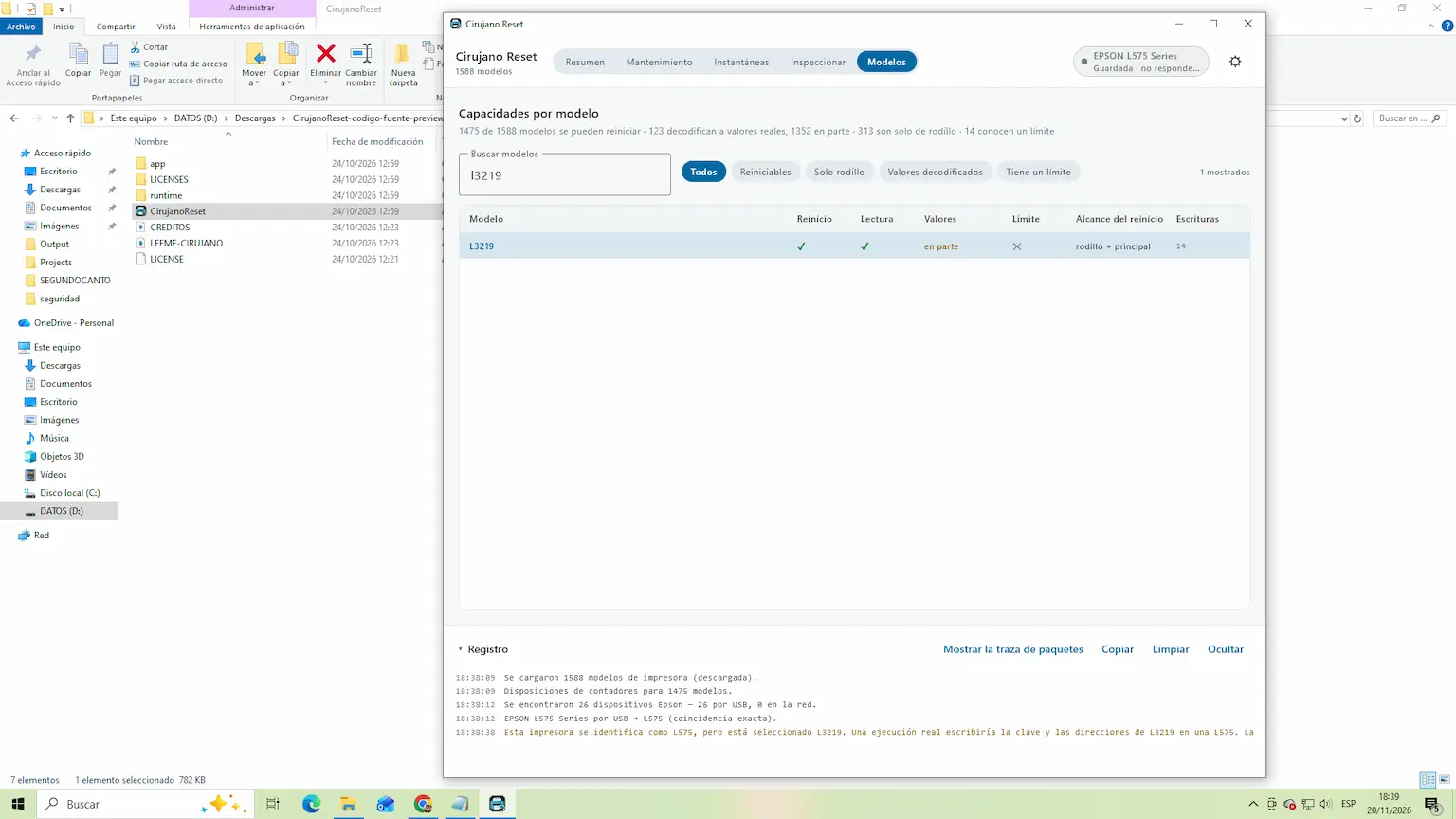
The Epson L3219 Resetter is a maintenance tool designed to reset the waste ink pad counter when the printer displays a service required message or indicates that some internal components have reached the end of their service life.
If your Epson L3219 has stopped printing and displays a maintenance warning, resetting the waste ink counter may help restore its operation. In this guide, you will learn what the reset process does, what to check before starting, and how to use CirujanoReset.
Epson printers use an internal counter to monitor the amount of waste ink collected during cleaning cycles and other maintenance operations.
Over time, this counter increases until it reaches a predefined limit. When that happens, the printer may display a service required message and stop printing.
The reset procedure clears the stored counter value, allowing the printer to resume operation when the reset is supported and completed successfully.
Important: Resetting the counter does not physically clean or replace the waste ink pads. These components must be inspected and serviced when necessary.
Before starting, make sure you have identified your printer correctly and downloaded a reset utility compatible with the Epson L3219.
Follow these general steps:
Note: Available functions depend on the software version and printer compatibility. Do not interrupt the procedure while the utility is communicating with the printer.
Model: Epson L3219
Operating system: Windows
Connection: USB
Main function: Waste ink counter service
Language: English
Password: cirujanodeimpresoras.com
Your download will be available in 60 seconds…

Some problems may occur before or during the reset process:
The waste ink pads collect residual ink generated during normal printing and automatic cleaning cycles.
If these components are saturated, resetting the counter without servicing the waste ink collection system can lead to ink leakage and damage to the printer or surrounding surfaces.
For this reason, always consider the physical condition of the waste ink pads before resetting the Epson L3219.
CirujanoReset availability and its supported functions depend on the version distributed on the official website.
No. A reset only clears the electronic maintenance counter. It does not remove accumulated ink or physically clean the pads.
A direct USB connection is recommended for communication between the printer and the reset utility.
The reset may not have been completed, the selected model may be incorrect, or another maintenance issue may be present.
The counter can potentially be reset again when the compatible utility supports it. However, repeated resets without inspecting and servicing the waste ink collection system are not recommended.
The Epson L3219 Resetter can be useful when the printer reaches its waste ink counter limit. However, the reset should always be accompanied by a proper inspection of the waste ink collection system.
Use a compatible utility, follow the instructions carefully, and avoid interrupting the process.
Technical review: Alexander Burgos – Systems Engineer and Printer Maintenance Specialist.
 Add Contact: 956598992
Amount to PayS/ 0.00
Debes escanear el código QR, hacer clic en continuar para adjuntar la captura de pantalla (es el único comprobante de pago) y podrás completar la compra.