
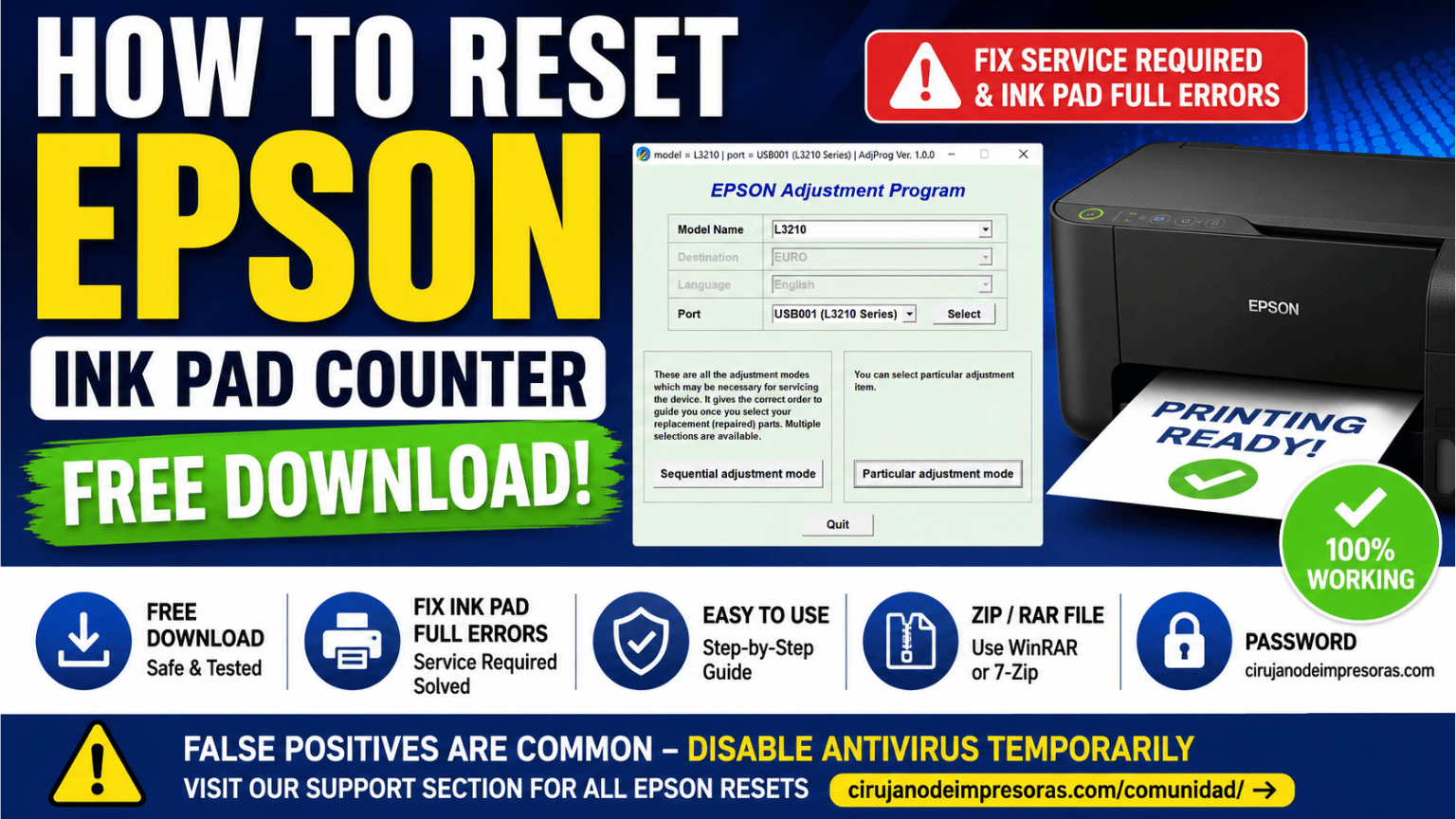
Is your Epson printer displaying “Service Required”, “Ink Pad Is At The End Of Its Service Life”, or another Waste Ink Pad Counter warning?
In many Epson printers, these messages appear when the internal maintenance counter reaches its programmed limit. If your model uses internal waste ink pads and supports the Epson Adjustment Program, you may be able to reset the counter after performing the appropriate maintenance.
In this guide, you'll learn how to reset the Epson Ink Pad Counter, how to find the correct Epson Resetter Free Download for your printer model, and what you should check before using the software.
⚠️ Important: Not every Epson printer uses the same maintenance system. Some models use internal waste ink pads, while others use a replaceable Maintenance Box with a chip. A Maintenance Box cannot necessarily be reset with the Adjustment Program.
During normal operation, Epson printers generate a small amount of waste ink.
This happens during procedures such as:
✔️ Print head cleaning.
✔️ Automatic cleaning cycles.
✔️ Initial ink charging.
✔️ Ink system maintenance.
✔️ Print head maintenance procedures.
Depending on the printer model, this waste ink may be collected by internal absorbent ink pads.
The printer uses an internal counter to estimate the amount of waste ink generated during these procedures.
When the counter reaches its programmed limit, the printer may stop printing and display a maintenance warning.
Common messages include:
❌ Service Required
❌ Ink Pad Is At The End Of Its Service Life
❌ A Printer's Ink Pad Is Near The End Of Its Service Life
❌ A Printer's Ink Pad Is At The End Of Its Service Life
You may also notice flashing lights or other maintenance indicators.
No.
This is an important difference.
The Adjustment Program only resets or modifies the maintenance counter. It does not physically remove waste ink stored inside the printer.
If the waste ink pads are saturated, they should also be inspected and serviced when necessary.
Resetting the counter without checking the physical condition of the waste ink system may eventually result in ink leakage.
Before downloading an Epson resetter, check which maintenance system your printer uses.
Many Epson models use internal absorbent pads to collect waste ink.
For compatible models, the Adjustment Program may include a Waste Ink Pad Counter function that allows the maintenance counter to be reset.
Some newer Epson printers use a replaceable Maintenance Box instead of relying exclusively on internal pads.
The Maintenance Box may contain a chip that monitors its status.
In these models:
⚠️ The Epson Adjustment Program does not necessarily reset the Maintenance Box chip.
Depending on the printer, servicing this component may require replacing the Maintenance Box, replacing its chip, or using a compatible physical chip resetter.
Always check the information for your exact printer model.
Below you can find our Epson Adjustment Programs and reset tools organized by printer series.
Always select the software specifically listed as compatible with your printer.
🔹 Epson L382, L386 & L486 Resetter
🔹 Epson L455 Resetter
🔹 Epson L375 Resetter
🔹 Epson L575 Resetter
🔹 Epson L120 Resetter
🔹 Epson L606 Resetter
🔹 Epson L6260, L6270 & L6290 Adjustment Program
🔹 Epson L3550, L3556 & L5590 Adjustment Program
🔹 Epson L3050 & L3070 Resetter
🔹 Epson L14150 & L14158 Resetter
🔹 Epson L5190 Resetter
🔹 Epson L4150 & L4160 Resetter
🔹 Epson L1110 Resetter
🔹 Epson L3160 Resetter
🔹 Epson L380 Resetter
🔹 Epson L130, L220, L310, L360 & L365 Resetter
🔹 Epson L565 Resetter
🔹 Epson L6161, L6171, L6190 & L6091 Resetter
🔹 Epson L3110 Resetter
🔹 Epson L1211, L1216, L1250, L1251, L1256, L3211, L3216, L3251, L3256 & L5296 Resetter
🔹 Epson L605 Resetter Free Download
🔹 Epson L110, L210, L350 & L355 Resetter Free Download
🔹 Epson L1210, L3210, L3250, L3251, L3260 & L5290 Resetter
🔹 Epson L396 Resetter Free Download
🔹 Epson L4250, L4260, L4261 & L4267 Resetter
🔹 Epson L4260 Resetter
🔹 Epson L3150 Resetter
🔹 Epson L3250 Resetter
🔹 How to Reset Epson L210
🔹 Epson L405 Resetter + Free Software
🔹 Epson L4360, L4366 & L4367 Ink Pad Reset
🔹 Epson ET-2600 & ET-2650 Resetter Free Download
🔹 Epson ET-1810, ET-2800, ET-2810, ET-2820 & ET-4800 Resetter
🔹 Epson ET-1810 Resetter Free Download
🔹 Epson ET-2803 Ink Pad Reset
🔹 Epson ET-2820 E11 Error Solution
🔹 Epson ET-2720 Resetter
🔹 Epson ET-2856 Resetter
🔹 Epson ET-2851 Resetter
🔹 Epson ET-2850 Resetter
🔹 Epson ET-2500 & ET-2550 Resetter
🔹 Epson XP-243, XP-245 & XP-247 Resetter
🔹 Epson XP-412 Resetter
🔹 Epson XP-2101 & XP-2105 Resetter
🔹 Epson XP-335 Resetter
🔹 Epson WF-7610 & WF-7620 Resetter
🔹 Epson WF-2630 Resetter Free Download
🔹 Epson WF-3720 Adjustment Program
🔹 Epson M1100 & M1120 Resetter
🔹 Epson M1140, M1170, M1180, M2140 & M2170 Adjustment Program
🔹 Epson M200, M201 & M205 Adjustment Program
🔹 Epson PM-225 & PM-235 Resetter
🔹 Epson L1250 Service Required – Free Download
🔹 How to Reset Printer Epson L120
Before downloading or running any Adjustment Program, verify:
✔️ The exact Epson printer model.
✔️ The models supported by the software.
✔️ Whether your printer uses internal waste ink pads or a Maintenance Box.
✔️ The specific maintenance error displayed by your printer.
✔️ The instructions provided on the download page.
Never use an Adjustment Program for a different model simply because the printers look similar.
Most of our Epson Adjustment Program files are distributed as compressed archives.
You may need:
✔️ WinRAR
✔️ 7-Zip
Download the file and extract all its contents before running the program.
When the archive requests a password, enter:
cirujanodeimpresoras.com
Enter the password exactly as shown.
Some printer service utilities may trigger warnings from antivirus software because of the way they are packaged or because they perform low-level service operations.
A security warning should not automatically be assumed to be a false positive.
For better security:
✔️ Download the file from the correct page.
✔️ Check that the archive is the expected file.
✔️ Review any security warning before running the software.
✔️ Avoid files downloaded from unknown mirrors or unofficial third-party websites.
The exact procedure varies depending on the printer model and Adjustment Program version.
For many compatible Epson printers, the process is similar to the following.
Find your exact printer model in the list above.
Download only the Adjustment Program specifically compatible with your Epson printer.
Right-click the downloaded archive and extract its contents using WinRAR or 7-Zip.
If requested, enter:
cirujanodeimpresoras.com
Do not run the program directly from inside the compressed archive.
Open the extracted folder.
Depending on the version, the executable may be named something similar to:
AdjProg.exe
or
Epson Adjustment Program
If required, right-click the executable and choose:
Run as Administrator
Depending on the Adjustment Program, you may need to select:
✔️ Printer model.
✔️ USB port or connection.
Make sure your Epson printer is turned on and connected correctly.
Look for:
Particular Adjustment Mode
Then locate:
Waste Ink Pad Counter
The exact names may vary depending on the software version.
Depending on the printer, you may see options such as:
Main Pad Counter
Select the applicable counter and click:
Check
The program should display the current counter status.
If you have confirmed that the program and counter are correct for your model, select the required counter and choose:
Initialization
or
Initialize
Follow the instructions displayed by the Adjustment Program.
When prompted:
If the correct counter was reset successfully and there are no other faults, the maintenance warning should disappear.
The Epson Adjustment Program can contain many additional service functions intended for printer maintenance and repair.
Depending on the model, these may include:
🔧 Head adjustments.
🔧 EEPROM functions.
🔧 Printer information.
🔧 Initial settings.
🔧 Other technical adjustments.
Do not modify settings that you do not understand.
If your goal is only to reset a supported Waste Ink Pad Counter, use only the functions required for that procedure.
No.
Different versions of the Epson Adjustment Program support different printer models.
Always check compatibility before using the software.
No.
Resetting the Waste Ink Pad Counter only changes the maintenance counter. It does not remove the waste ink stored in the pads.
Physical maintenance may also be required.
Many Adjustment Programs work on Windows systems, but compatibility varies depending on the software version.
Check the instructions for the specific download before using it.
It depends on the Adjustment Program.
Many tools can operate locally after downloading, while others may have different requirements.
The counter will continue increasing as the printer performs cleaning and maintenance operations.
If it reaches its limit again in the future, the waste ink system should be inspected before performing another reset.
There are several possible reasons.
Your Adjustment Program may not support that function, you may be using the wrong software version, or your printer may use a different maintenance system.
If your printer uses a Maintenance Box with a chip, resetting the Waste Ink Pad Counter may not solve the problem.
Depending on the model, you may need to replace the Maintenance Box, replace its chip, or use another compatible maintenance procedure.
Waste ink is generated during normal printer maintenance, so it cannot be completely avoided.
However, you can reduce unnecessary waste by:
✔️ Avoiding repeated print head cleanings when they aren't necessary.
✔️ Printing regularly to help prevent dried nozzles.
✔️ Using suitable ink for your printer.
✔️ Performing preventive maintenance.
✔️ Diagnosing print-quality problems before running multiple cleaning cycles.
Repeated head cleaning consumes ink and sends additional ink into the waste ink system.
The most important step is choosing the correct software for your exact model.
At Cirujano de Impresoras, we organize Epson Adjustment Programs and technical guides for different generations of Epson printers, including:
🖨️ Epson L Series
🖨️ Epson EcoTank ET Series
🖨️ Epson XP Series
🖨️ Epson WorkForce WF Series
🖨️ Epson M Series
🖨️ Epson PM Series
New printer models and technical resources are added as they become available.
Resetting the Epson Ink Pad Counter can solve maintenance warnings on many compatible Epson printers, but the procedure should be performed correctly.
Remember:
✔️ Identify your exact Epson printer model.
✔️ Download the compatible Epson Resetter or Adjustment Program.
✔️ Check whether the printer uses internal waste ink pads or a Maintenance Box.
✔️ Remember that resetting the counter does not physically clean the waste ink pads.
✔️ Follow the instructions for your specific printer model.
If your Epson displays Service Required or an Ink Pad warning, use the model list above to find the appropriate guide and Adjustment Program.
🔧 Cirujano de Impresoras – Printer repair information, software and technical resources.
 Add Contact: 956598992
Amount to PayS/ 0.00
Add Contact: 956598992
Amount to PayS/ 0.00
Este método no permite pagos superiores a 500 por día.
Debes escanear el código QR, hacer clic en continuar para adjuntar la captura de pantalla (es el único comprobante de pago) y podrás completar la compra.