
Key Points
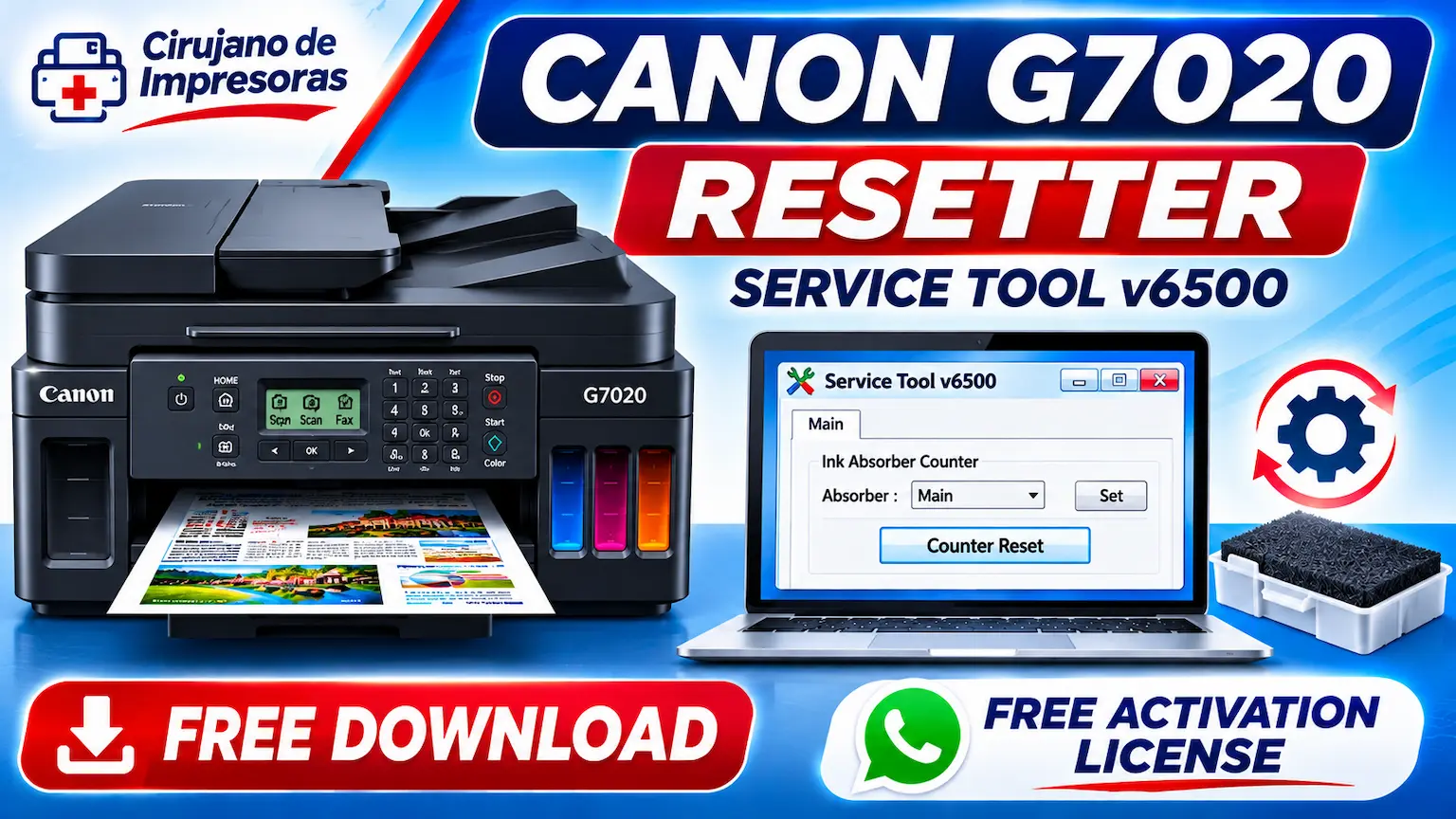
Hello, technical community! I'm Alexander, and today we are going to discuss the Canon G7020 Resetter, a service tool intended for maintenance procedures on this MegaTank printer.
At Cirujano de Impresoras, we provide Service Tool v6500 for download, along with the option to request a free activation license through WhatsApp.
However, before resetting your printer, it is essential to identify the actual cause of the error and check the condition of the waste ink absorption system.
Service Tool v6500 is a maintenance utility designed to perform specific service operations on compatible Canon printers.
Depending on the printer model and supported functions, the software may be used to reset waste ink counters and access certain maintenance settings.
Unlike a standard factory reset, a service tool performs operations related to the printer's internal maintenance parameters.
Therefore, it is important to use the appropriate software version and follow the correct technical procedure.
During printhead cleaning and other maintenance operations, the printer generates waste ink that is collected by internal ink absorbers.
Over time, the printer estimates the amount of accumulated waste ink through an internal counter.
When the counter reaches its programmed limit, the printer may display a maintenance warning or stop printing.
Common situations that require further inspection include:
Nevertheless, not every printer error can be resolved with a reset. Mechanical failures, printhead problems and electronic faults require a different diagnostic approach.
The software and activation license are provided separately.
First, download Service Tool v6500. Then, follow the instructions below to request your free license.
| Software information | Details |
|---|---|
| Printer model | Canon PIXMA G7020 |
| Software | Service Tool |
| Version | 6500 |
| License | Free upon request |
| Activation | Hardware ID |
| License request |
File extraction password: cirujanodeimpresoras.com
Your download will be available in 60 seconds…

To activate the software, you must submit the Hardware ID generated by the program.
Please follow these steps carefully.
Extract the downloaded archive using a compatible file compression utility.
Enter the password provided above if requested.
Before running the software, check the integrity and security of the downloaded files.
Open Service Tool v6500 or the activation utility included with the download.
Locate the field labeled Hardware ID and copy the complete identification code.
Make sure you perform this step on the computer where you intend to use the software.
Contact us through WhatsApp and paste the Hardware ID directly into your message.
You can use the following message:
Hello, I would like to request a free Service Tool v6500 license for my Canon G7010 printer.
Hardware ID: [Paste your Hardware ID here]
Printer error code: [Enter your error code here]
IMPORTANT:
Your Hardware ID must be submitted as plain text.
Screenshots, photographs and images containing the Hardware ID will not be accepted.
Once you receive your license, follow the activation instructions provided.
Make sure the Hardware ID corresponds to the same computer and software version used to request the license.
Before performing any maintenance operation, make sure you have identified the correct printer model and error code.
Check the condition of the waste ink absorption system.
If the absorbers are saturated, the printer requires physical maintenance before resetting the corresponding counter.
Connect your printer directly to your computer using a reliable USB cable.
Avoid unstable connections and close other printer maintenance utilities that could interfere with communication.
If required by the procedure, place the printer into service mode using the instructions specific to the Canon G7010.
Do not use button sequences intended for other printer models.
Open the activated software and verify that it recognizes the printer.
If the program displays an error or fails to detect the device, stop and check the connection and service mode requirements.
Select only the supported maintenance function required for your printer.
Avoid changing unrelated counters, EEPROM settings or other internal parameters.
Wait until the operation is complete before disconnecting or restarting the printer.
After completing the maintenance procedure, follow the appropriate restart instructions and check whether the original warning has disappeared.
Finally, perform a test print to verify normal operation.
No. This is one of the most important technical considerations when using printer reset software.
Resetting the waste ink counter modifies an internal maintenance value. It does not physically remove accumulated ink.
| Waste ink counter reset | Physical maintenance |
|---|---|
| Resets a supported internal counter | Removes or addresses accumulated waste ink |
| Performed using service software | Requires inspection and technical work |
| Does not clean the absorbers | Restores the absorption system when properly performed |
| Electronic maintenance operation | Physical maintenance procedure |
Ignoring saturated ink absorbers may result in internal ink leakage and damage to printer components.
For this reason, we recommend inspecting the waste ink system before resetting its counter.
Check the USB cable, USB port and printer preparation instructions.
Additionally, verify that the printer is in the required service mode.
Make sure you submitted the complete Hardware ID and are using the same computer and software version.
If necessary, send us the exact activation error message.
The original problem may not be related to the waste ink counter.
Check the error code again before attempting another maintenance operation.
Review the activation window and the instructions included with the downloaded software.
Do not confuse the Hardware ID with the printer's serial number.
Yes. Cirujano de Impresoras provides the software download and offers a free Service Tool v6500 license upon request via WhatsApp.
The version provided in this article requires activation. To request your license, copy and submit your Hardware ID as plain text.
No. You must copy and paste the complete Hardware ID directly into your WhatsApp message.
No. Service tools are intended for specific maintenance operations. Mechanical, electronic and printhead failures require proper diagnosis and repair.
No. Resetting the counter does not remove the ink accumulated inside the absorbers.
Download the software, locate your Hardware ID and contact us through WhatsApp to request your free activation license.
Remember that your Hardware ID must be submitted as plain text, not as a screenshot or photograph.
At Cirujano de Impresoras, our goal is to provide useful technical resources for printer technicians and users who want to understand and maintain their equipment.
Disclaimer: The free license offer described in this article is provided by Cirujano de Impresoras. It is not an official Canon promotion.
Reviewed by Alexander
Systems Engineer and technician specializing in printer repair, maintenance and electronic diagnostics.
 Add Contact: 956598992
Amount to PayS/ 0.00
Debes escanear el código QR, hacer clic en continuar para adjuntar la captura de pantalla (es el único comprobante de pago) y podrás completar la compra.