
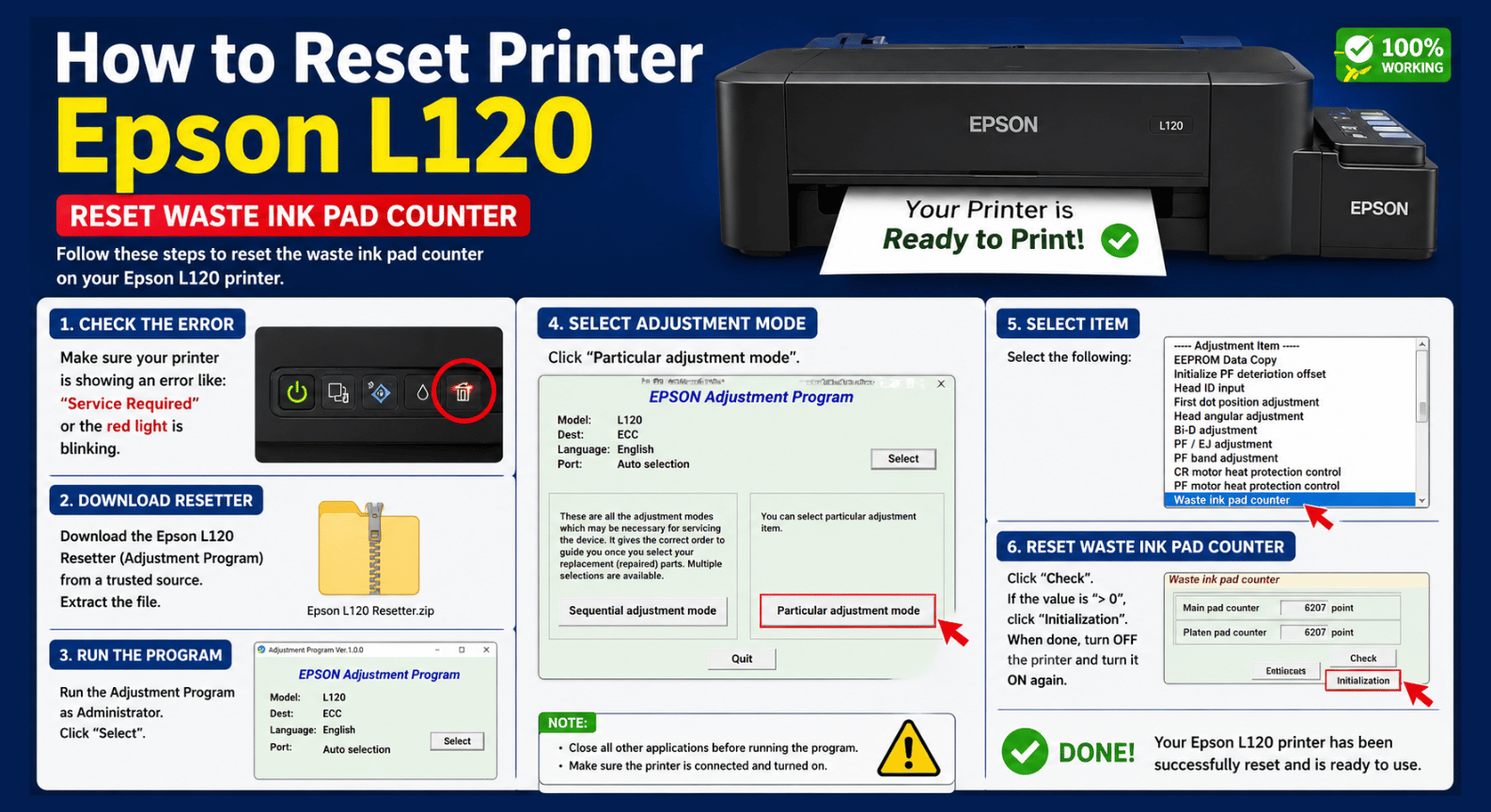
Are you looking for how to reset printer Epson L120 because your printer stopped working and displays a message related to the ink pads reaching the end of their service life?
The Epson L120 uses an internal counter to estimate the amount of waste ink generated during printhead cleaning and maintenance operations. When this counter reaches its programmed limit, the printer may stop printing and require maintenance.
In this guide, you will learn how to reset an Epson L120, how the waste ink pad system works, and how to use the Epson L120 Adjustment Program to reset the waste ink counter.
During normal operation, your Epson L120 performs automatic and manual printhead cleaning cycles.
These processes generate waste ink, which is directed to internal absorbent pads.
The printer uses an internal counter to estimate the amount of waste ink sent to these pads. When the counter reaches its established limit, the printer may stop operating and display a maintenance warning.
Common symptoms include:
🔴 Epson L120 stops printing.
✔️ Printer lights start blinking.
🔴 A service-required message appears on the computer.
✔️ A warning related to the ink pads is displayed.
🔴 The printer turns on but does not allow normal printing.
If the problem is caused by the waste ink counter, the Epson L120 Adjustment Program can be used to reset the corresponding counter.
Resetting the Epson L120 involves two different maintenance procedures:
Before resetting the counter, check the physical condition of the waste ink pads.
These pads collect ink generated during printhead cleaning operations. If they are saturated, they should be properly cleaned or replaced.
⚠️ Important: resetting the software counter does not physically clean the waste ink pads.
After performing the necessary physical maintenance, you can use the Epson L120 Adjustment Program to reset the internal waste ink counter.
This tool is commonly known as:
Epson L120 Reset
or
Epson L120 Resetter
The Epson L120 Adjustment Program provides access to service and adjustment functions for this printer.
One of its most commonly used functions is Waste Ink Pad Counter, which allows the maintenance counter to be checked and initialized.
⚡ Reset the waste ink pad counter.
✔️ Access the Waste Ink Pad Counter function.
⚡ Check the current counter value.
✔️ Initialize the maintenance counter.
⚡ Access additional technical adjustment functions.
✔️ Designed for Windows computers.
🔧 Useful for printer maintenance and technical service.
Before running the Epson L120 reset tool, make sure you have:
🖥️ A Windows computer.
🖨️ Epson L120 printer.
🔌 USB cable.
📦 WinRAR or 7-Zip.
💾 Epson L120 Adjustment Program.
🔧 Administrator permissions in Windows.
For this procedure, a direct USB connection between the printer and computer is recommended.
The Epson L120 Adjustment Program is provided as a compressed file.
You can extract it using:
Download the file and extract its contents before running the program.
If a password is requested when extracting the downloaded file, use:
cirujanodeimpresoras.com
Enter the password exactly as shown, using lowercase letters.
Some printer service utilities may trigger warnings from antivirus or Windows security software because of how older or specialized executables are packaged or operate.
Do not automatically assume that every antivirus detection is a false positive. Make sure the file comes from a source you trust before allowing it to run.
If you manually authorize the program, keep your normal Windows security protection enabled again after completing the procedure.
Follow these steps to reset the waste ink pad counter on your Epson L120.
Turn on the printer and connect it directly to your computer using a USB cable.
Make sure Windows detects the printer correctly.
Extract the downloaded file using WinRAR or 7-Zip.
When prompted for a password, enter:
cirujanodeimpresoras.com
Open the Epson Adjustment Program.
If necessary, right-click the executable and select:
Run as administrator
Make sure the selected printer model is:
Epson L120
Select the correct USB port if the program asks you to choose one.
Click:
Particular adjustment mode
The program will display the available service and adjustment functions.
Find and open:
Waste Ink Pad Counter
This section allows you to check and initialize the waste ink counter.
Select the applicable waste ink pad counter and click:
Check
The program will display the current counter information.
After checking or servicing the physical waste ink pads, select the appropriate counter and click:
Initialization
Follow the instructions displayed by the Adjustment Program.
When prompted:
If the waste ink counter was the cause of the problem and the procedure was completed successfully, the maintenance warning should disappear.
Print a test page or document to confirm that your Epson L120 is working normally.
The waste ink pad counter is an internal software counter used by the printer to estimate waste ink accumulation.
It increases as the printer performs operations that send ink to the waste ink system.
When the programmed limit is reached, the printer can request maintenance.
Resetting this counter does not remove the physical ink stored inside the waste ink pads.
For this reason, checking the physical waste ink system is an important part of proper maintenance.
If you have a compatible Epson L120 Adjustment Program, you can use its Waste Ink Pad Counter function to perform the reset described in this guide.
No.
The Adjustment Program only resets the corresponding electronic counter. It does not physically remove ink from the waste ink pads.
This type of service utility is generally run from its extracted folder, depending on the specific version being used.
A direct USB connection is recommended when using the Adjustment Program.
Blinking indicators can have different causes.
If the problem is related to the waste ink pad counter, a reset may be required. However, you should identify the actual error before resetting the printer because blinking lights can also indicate other problems.
The Adjustment Program provided for these procedures is generally intended for Windows. Do not assume that it will run on macOS unless the specific software version explicitly supports it.
The waste ink counter can eventually reach its limit again as the printer continues to be used.
However, the physical waste ink pads should also be inspected and serviced when necessary rather than repeatedly resetting only the electronic counter.
If your Epson L120 remains blocked after completing the procedure, check the following:
❗ Make sure the Epson L120 was correctly detected.
✔️ Check the USB cable and connection.
❗ Verify that the correct printer and port were selected.
✔️ Confirm that the initialization process completed successfully.
❗ Restart both the printer and Adjustment Program if necessary.
❗ Verify that the original problem was actually related to the waste ink counter.
If the printer shows another error, diagnose that error before attempting another reset.
The Epson L120 reset should not be considered a replacement for physical maintenance.
If the waste ink pads are saturated, clean or replace them as appropriate before continuing to use the printer.
This helps prevent excessive waste ink accumulation and possible leakage.
If your printer has stopped because the waste ink pad counter reached its limit, you can download the Epson L120 Adjustment Program and follow the procedure explained above.
✅ Model: Epson L120
⚡ Software: Adjustment Program
✅ Waste Ink Pad Counter function
⚡ Free download
✅ Compressed file
🔑 Password: cirujanodeimpresoras.com
Tu descarga estará disponible en 60 segundos…

At Cirujano de Impresoras, you can find additional Epson Adjustment Programs, technical guides, EEPROM files, service manuals, and repair resources for different Epson printer models.
Always verify the exact printer model and diagnose the error before using any service or reset utility.
✅ Download Epson L120 Reset for free and learn how to reset the waste ink pad counter using the Epson Adjustment Program.
 Add Contact: 956598992
Amount to PayS/ 0.00
Add Contact: 956598992
Amount to PayS/ 0.00
Debes escanear el código QR, hacer clic en continuar para adjuntar la captura de pantalla (es el único comprobante de pago) y podrás completar la compra.